
If your company has licensed the GRC module, and the Administrator has allowed you access, then you can create Criteria. GRC Criteria automates key tasks that you'd like the Brandle Presence Manager to automate and monitor. While Issues allow you to manually track areas of compliance concern, Criteria allow you to define rules which the Brandle Presence Manager will monitor and report for you.
You create Criteria by selecting GRC/Criteria and clicking on the Add New Criteria button.
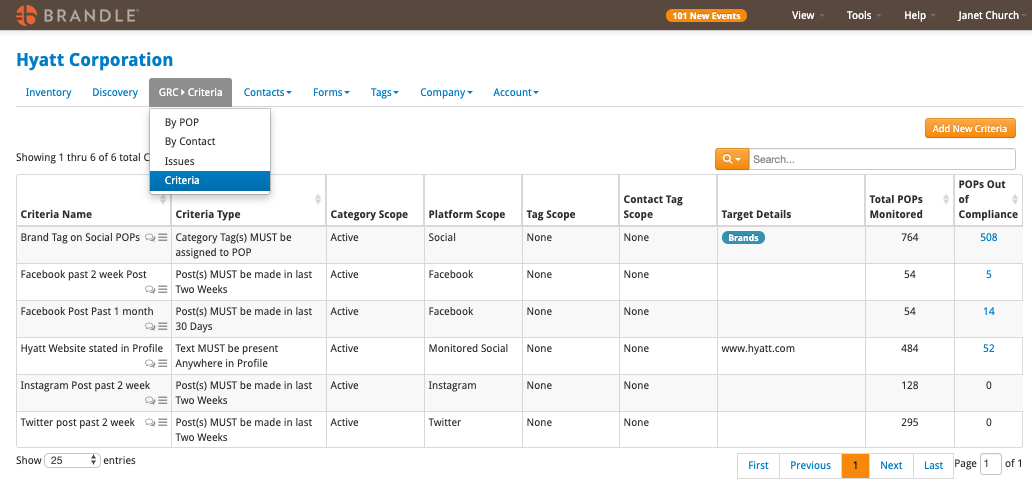
Name the criteria (not shown on image below), select the type of Criteria, and add the language specific to this item. You have the ability to have Brandle look at Social Network Profiles to find text, URLs, or even search the last posting date (the type of Monitoring would be Text or A Post). You also have the ability to have Brandle search within the Inventory for A Tag, A Contact, or A Contact Role. You would use this type of Criteria when you want to find any POP that does not yet have a Contact (for example).
Once you set the criteria, you can then apply it to specific POPs within your Inventory by manual action or by scoping Criteria to automatically apply to POPs.
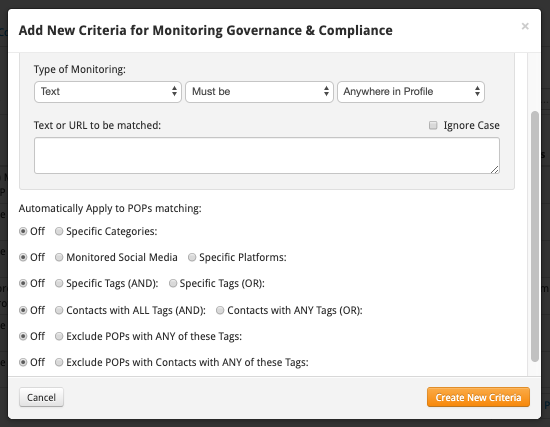
Criteria by Scoping — Apply and Remove.
The image below shows how to select a scope based on Categories, Platforms, Tags (of POPs), Tags of Contacts, and has an exclusion Tag option (scrolling to the bottom of the box). You may wish to apply a Criteria to your Active Inventory, for Facebook, with a specific Region Tag, excluding POPs with a specific tag. This allows you to accomplish that type of rule.
Should you wish to remove a Criteria from a certain POP, then just apply a specific tag to it and make sure that Tag is listed in the Exclusion rule of the Criteria.
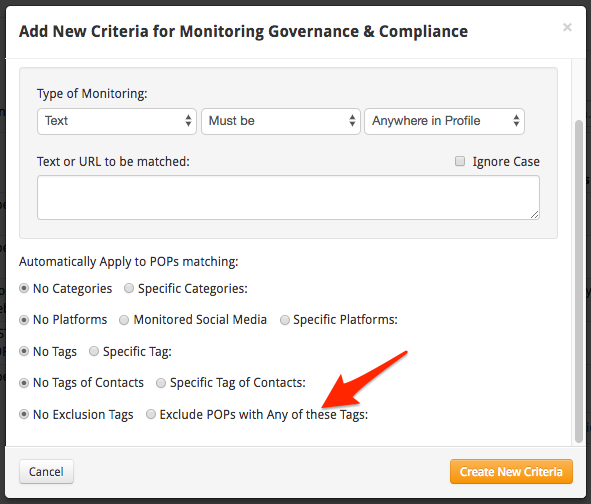
Manual Criteria — Apply and Remove.
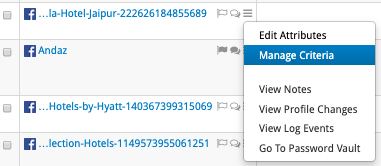
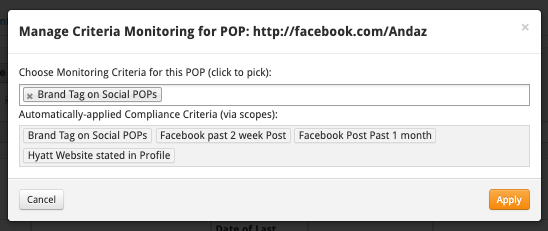
To apply Criteria manually, go to the individual POP Action Menu and Select Manage Criteria.
Then click the box in the top field Choose Monitoring Criteria for the POP. Here, I have selected a DoubleTree Posting criteria. Any Criteria listed in this box can be removed by clicking the X of the Criteria. You can also see the Criteria that have been automatically applied. These must be altered via the Coping directions above.
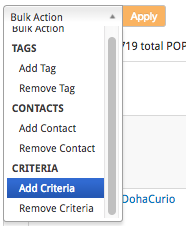
You can also use Bulk Action to manually apply or disable criteria to a group of POPs. First Filter to get the POPs you'd like to work with, and then check the boxes to the left of the POP identifier. Go to Bulk Action and select Criteria (Add/Remove) and the click Apply.
Criteria Monitoring
Whether you apply Criteria by scoping or manually, the Criteria system will monitor and alert you when a POP goes in or out of compliance and why (based on your Criteria applied). This will help you ensure your POPs stay in compliance.
Disable All Monitoring
To Disable ALL monitoring for a specific POP, select the Disable Monitoring menu item. This will disable all monitoring whether applied via scope or manually.
Comments
0 comments
Please sign in to leave a comment.