
Tag Trees are a graphical representation of the POPs you've associated with Tags. You can have multiple Tag trees with different views for each team, business unit, brand, and/or region of your web presence. The Tag Tree allows great flexibility to create the graphical views that matter most to you and your unique organization.
Once you create your Tag Trees, you can select on any node (or Tag) in the Tree and the Brandle Inventory table will populate with the POPs that have that Tag, or the lineage of Tags highlighted on the Tag Tree.
In general:
- You can create as many Tag Trees as you like!
- You can Hide or Show Tag Tree by selecting the View top menu item in the brown Brandle menu bar. The Tag Tree then displays at the top of the Inventory Table.
- You can easily change the name of a Tag Tree by highlighting the name and typing the new name.
- Only existing Tags in your Brandle Account can be applied in the Tag Tree area. You must create new Tags in the Tags Tab.
- Only Administrators of your Brandle Account can create, modify, or delete Tag Trees. All users can view and operate the Tag Tree to receive the information they need, but key actions are limited to Administrators at this time.
Why Create Different Tag Trees
The beauty of the Tag Tree is that it is so flexible, that you can associate the same POPs with multiple Tags and Tag Trees. It is often the case that you want to view the same information but sliced in different ways. The example of having a graphical view by brands is a common choice, as is a view by region, business unit, departments, etc. Whatever structure you need to view to help you achieve the strongest social media governance for your company is easily available with the Tag Tree. See how to Create Tag Trees.
Tag Tree Language
Main Tree — the top-level view used most by the Administrative Team for global governance.
Root node — the black node of the Main Tree or the first Tag node of another Tag Tree.
Parent node — the Tag node preceding a Tag node that is attached to the "parent"
Child node — Attached Tag node
Sub-tree — a parent node with one or more attached child nodes. In the image below, the Hilton Tag node is a Sub Tree that includes all of the attached regions.
When you click on a Tag, you will see the options available to you:
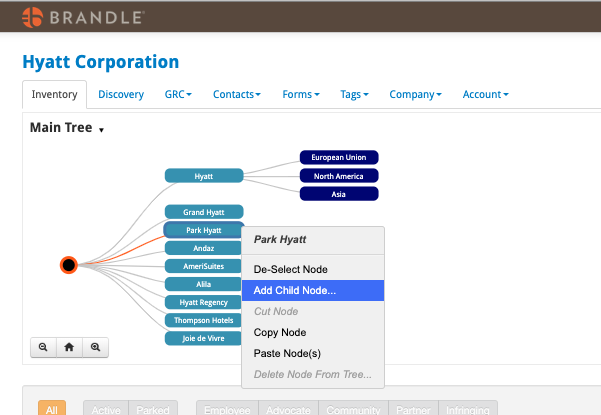
When you choose Select Node, all of the POPs associated with that node (and any POP associated with a sub-node) will be displayed in the Inventory Table. If a node is already selected (as in the screen shot), then you can choose to de-select and move onto another node to highlight.
Comments
0 comments
Please sign in to leave a comment.