
The Contacts table works much like the POPs tables do in Inventory and GRC. However there are two levels of Filtering on the Contacts tab:
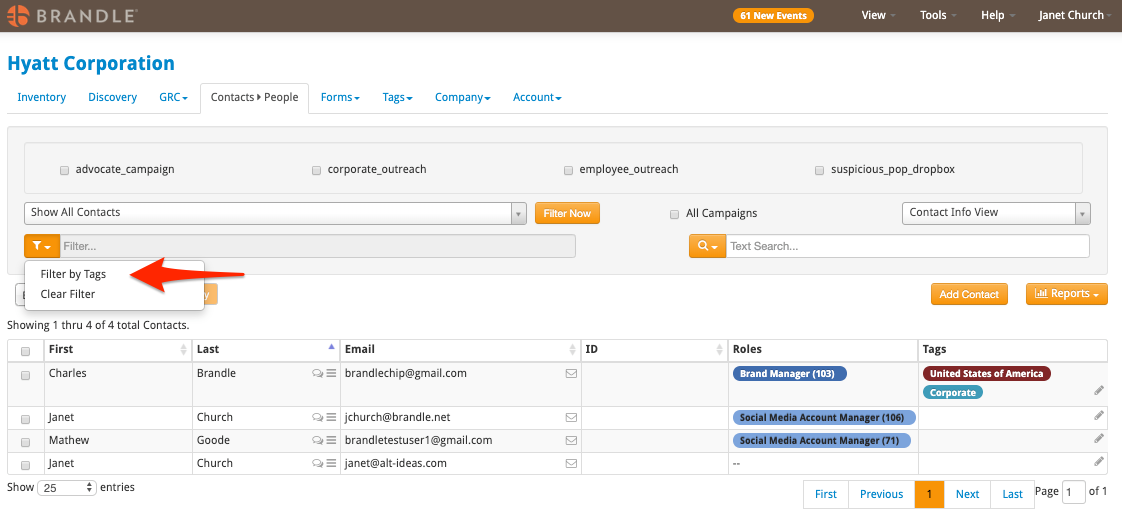
Filter by Tags - This works just like every POP table. You may wish to filter contacts by a specific tag (such as Brand Manager, or Country) and those contacts will display in the Table. You can then click the Reports button and export the view into an Excel spreadsheet. Be sure that the columns you wish to see are present. If you wish to see a list of Contacts and their POPs, first filter by the tag, and then select the Associated POPs View (above the Text Search box).
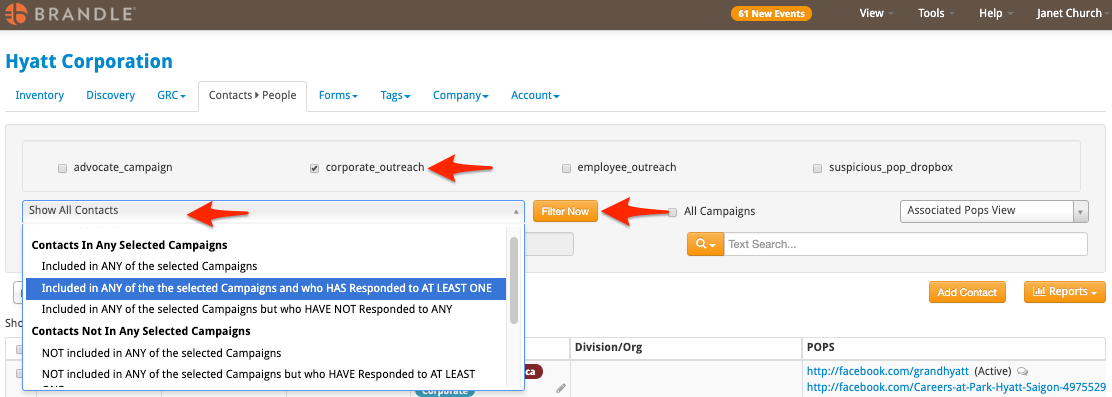
Filter By Campaign - You may wish to see which Contacts have or have not taken part in a Campaign. The top level of the Filter box addresses this. First click the Campaigns of interest, then select the filter you wish to see (included in campaign, has responded to campaign, has not responded to campaign). Click the Filter Now button and wait for the table to filter. If you wish, export the view by clicking the Reports button and exporting to Excel.
Comments
0 comments
Please sign in to leave a comment.