
New Team Members can be added to your company Brandle account for people who have been given permission to invite and modify Team Members. Administrators have all rights and permissions (as the default) and so Administrators of your account will either own the invitation process or create Team Role(s) with the permissions needed for those people to invite others to the company Brandle Account.
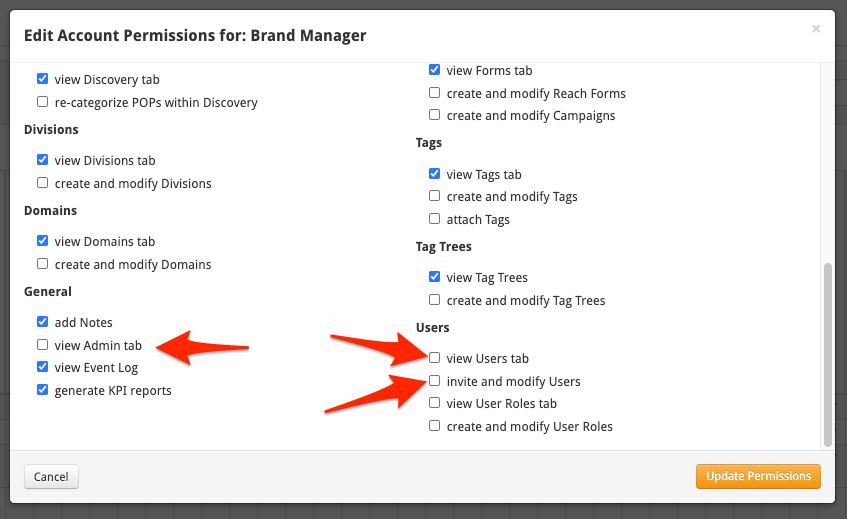
To grant permission to non-Administrators Team Roles, select a Team Role (or create a new one) and be sure to click the box under GENERAL "view Admin Tab". This will allow people to see the admin tab so they can then invite a user. Then under USERS select the boxes "view Users tab" and "invite and modify Team Members". Then the permissions are set and people who are users with the Team Role (in this case "Brand Manager") will be able to invite new users to the company Brandle account.
Inviting a new team member to your entity account is simple. Select the Team sub-menu item from the Account tab and click Invite New Team Member. Enter their email address and select the role you would like them to have and then click the Invite User button.
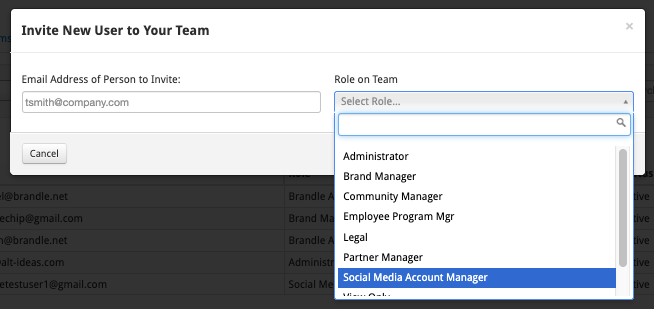
If you have created custom roles for your account, then those options will also be listed in the Role on Team drop-down menu.
The Brandle Presence Manager provides a list of all current users within the account on the Account Team sub-tab (for those whose Team Role has the permissions selected). If you want team members in a specific role to be able to see the people and their Roles in the Brandle System, be sure to check the View Users Role Tab box in the permissions.
The Team Role Shown next to each user in the list is their current user role with options provided to modify their role and access, or to remove their account and access entirely. Again, this is for people who have permission to "create and modify User Roles". Also shown is the current list of people that have been invited into the account, but who have not yet created their user accounts (their status will show as Pending).
In addition to placing the team members on the Account/Team list, once they have accepted their invitation, they will also be placed on the Contacts table so communication with them regarding POPs is ready to go.
Comments
0 comments
Please sign in to leave a comment.