
The Brandle Presence Manager supports two standard (2) user roles as Team members:
- Administrator
- View Only User
As well as the ability to customize and create Team Roles with specific emails and permissions.
The Entity Administrator role:
Entity Administrators are "superusers" that have the ability to view all tabs and view/modify all data within the account. This includes permissions to add/remove users and their roles, and to create/modify/destroy all POPs, Campaigns, Note, Tags, Brand Patrols and Contacts.
The View Only User role:
View Only Users are users that may view data within the account, but are not permitted to modify it in anyway.
The Admin-defined User role:
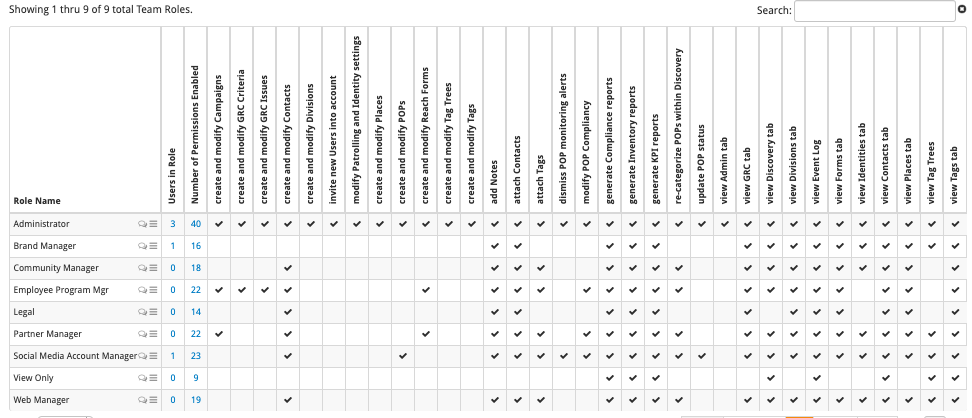
An Administrator can create any number of Team Roles with specific titles and permissions. When a user is assigned this role their access to the various sub-systems of the Brandle Presence Manager are highly configurable, with options to limit what they can see and what they can modify.
Here is a table of examples that show Team Roles and the permissions assigned:
Changing or Duplicating Roles
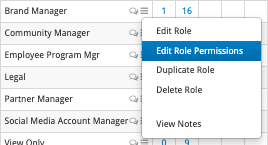
Editing a Role, it's Permissions or creating a duplicate is done by selecting the option desired on the 3-bar menus next to the Team Role name.
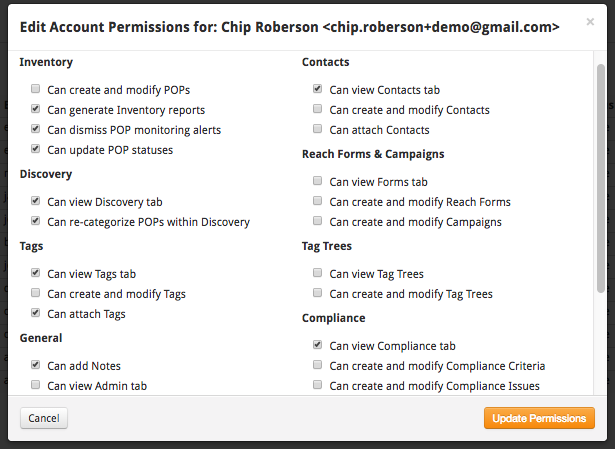
Permissions: The current permission options list is displayed below and is accessed by selecting the 3-bar Action Menu beside the Team Role name. Further details as to the permissions each option grants can be found in tooltips associated with each option's checkbox on the modal.
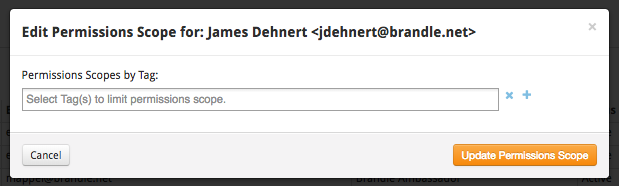
Scope: Additionally, you can apply a scope via a tag to each role. The tag may be a brand tag or a region tag, or whatever limitation you wish to apply to the user. Most often, a user is scoped by a location (such as the country where they manage accounts) or a brand. This allows the user to only see the POPs that they need to manage or report on. Applying a scope does mean that you will need to be very diligent in applying correct Tags to your entire Inventory of POPs. Customization of an individual's scope is done person-by-person in the Team tab .
Comments
0 comments
Please sign in to leave a comment.