
Viewing the Results of your Campaigns is easy. Just go to the Forms/Campaigns tab and see the progress of your results on the Campaign tab or detailed information on the Results Tab.
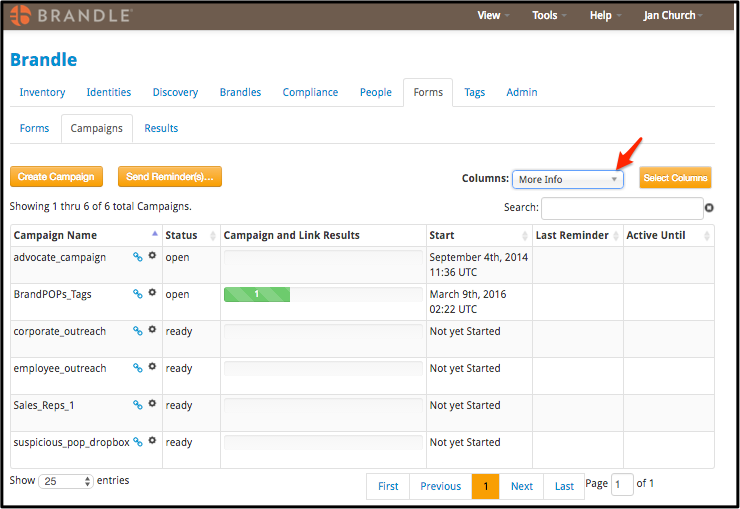
- In the Campaigns Tab, Brandle shows you a summary of results for each Campaign (as seen below). As people submit their form, the data will be reflected in the results summary.
- There are two Column Views for the Campaigns tab: Results and More Info.

- The More Info view is helpful to see the last Reminder you sent to the Campaign audience and if there is end date applied to the Campaign.
- To see detailed information on Form and/or Campaign Results, go to the Results Tab in the Forms area of the Brandle Presence Manager.
- First, select whether you would like results for a Form or a Campaign. Then select the specific Form or Campaign.
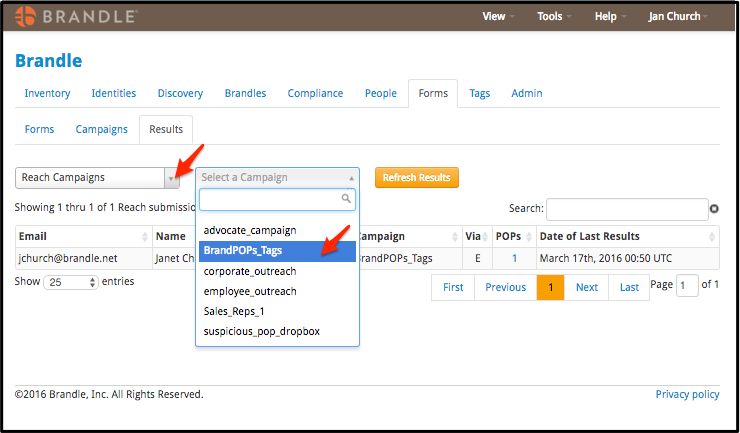
- The table will then populate with the specific results you are seeking. The results include how the POPs were submitted (Via E for email or Via L for link), and the Date of the last results.

Comments
0 comments
Please sign in to leave a comment.