The Brandle Presence Manager includes a set of standard forms for you to customize and use to collect information for your Inventory.
Brandle includes two different form types: Multiple URLs without Tags and Single URL with Tags.
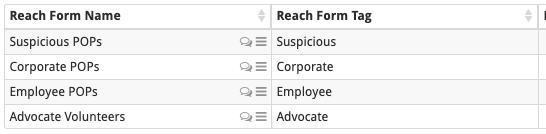
1. Multiple URLs without Tags. This form allows a user to submit ALL of his/her POPs that are associated with your brand. Brandle includes three pre-designed forms already set-up in your account. These are:
Employee_POPs
Suspicious_POPs
Advocate_Volunteers
When these forms are submitted, the POPs come into Discovery with the correct Contact name and Form name associated. In Discovery, the category column will say "Submission" instead of the general "Uncategorized" used when Brandle discovers a POP. This way you will know what Brandle has automatically discovered and what has been submitted via a Reach Form when you are viewing POPs in Discovery.
An example of this type of form might be one that you would create for salespeople (if you need to collect all of their POPs for monitoring).
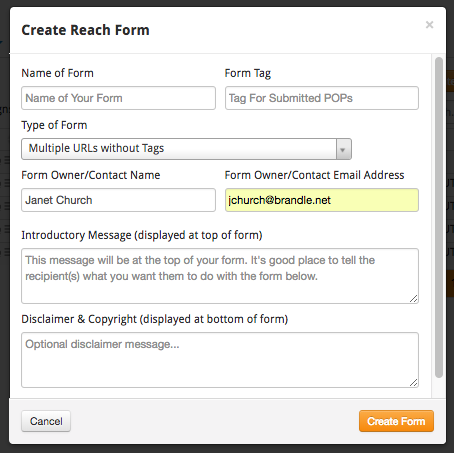
Here's how you create a Reach From for Multiple URLs:
Go to the Forms Tab in the Brandle Presence Manager.
Click the "Create New Form" button.
Complete the name, tag name, and select the Multiple URLs without Tags form.
Customize the message that will display on the form and complete the disclaimer box with any important disclaimer information.
Select the orange "Create Form" button.
Your Form will be created and saved with your selected name.
When the Form is saved, a Campaign will be automatically created with the same name. This is where you can view the Form. The Campaign and Form are fully editable before you send the Campaign.
You can use just the Form link (and place on a shared server, for example), or use the Campaign with the attached form.
YOUR LOGO will be on the Form, if you have uploaded one in the Account Tab of your account.
2. Single URL with Tags. This form-type is intended to collect more data from the contact that manages the POP. Brandle includes one pre-designed form already set-up in your account.
Corporate_POPs
On this form, a single POP URL is submitted and tags can be placed on the POP. The Tag Categories are selected from the ones you've already defined for your account.
When this POP is submitted (by the form user), it comes into Discovery with the correct Contact name, Form name, and Tags associated. In Discovery, it will say "Submission" instead of the general "Uncategorized" used when Brandle discovers a POP.
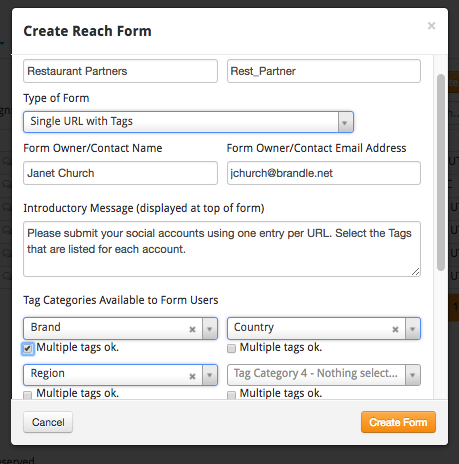
To create a Reach Form for a single URL with the ability to apply tags:
Follow the same steps as above but select "Single URL with Tags" as the "Type of Form".
Complete the Introductory Message and the Disclaimer Message at the bottom of the form.
Select up to eight (8) Tag Categories based on the tagging strategy you have already designed in the Brandle Presence Manager. (Complete your tag strategy on the Tags Tab before creating this form type.
Check the "Multiple Tags are OK" for those categories where more than one tag is possible and you'd like to capture all of the accurate data.
Your form will be created and saved with your selected name.
YOUR LOGO will be on the Form, if you have uploaded one in the Admin Tab of your account.
When the Form is saved, a Campaign will be automatically created with the same name. This is where you can view the Form. The Campaign and Form are fully editable before you send the Campaign.
You can use just the Form link (and place on a shared server, for example), or use the Campaign with the attached form.
The user will complete the form and select the correct Tags from the Tag Categories you listed when creating the form.
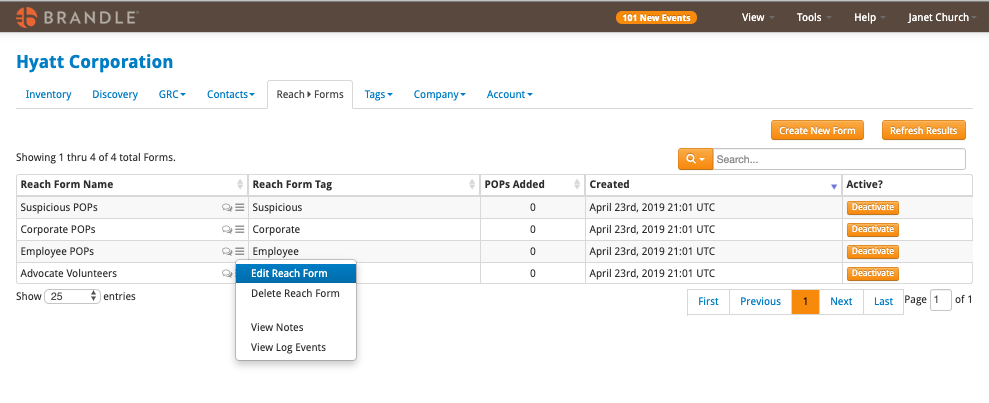
Editing Forms
To Edit the Forms, just select the 3-bar action menu beside the form name.
Deactivating the form using the golden button to the right will permanently deactivate it whether it is mid campaign or if the Form link is still available on a shared location. However, the results at time of deactivation will remain in the table.
Reach Forms and Campaigns are a great way to augment your Brandle Discovery and have other people apply the Tags and Contacts needed for detailed reporting. What is your strategy for Forms and Campaigns?


Comments
0 comments
Please sign in to leave a comment.