
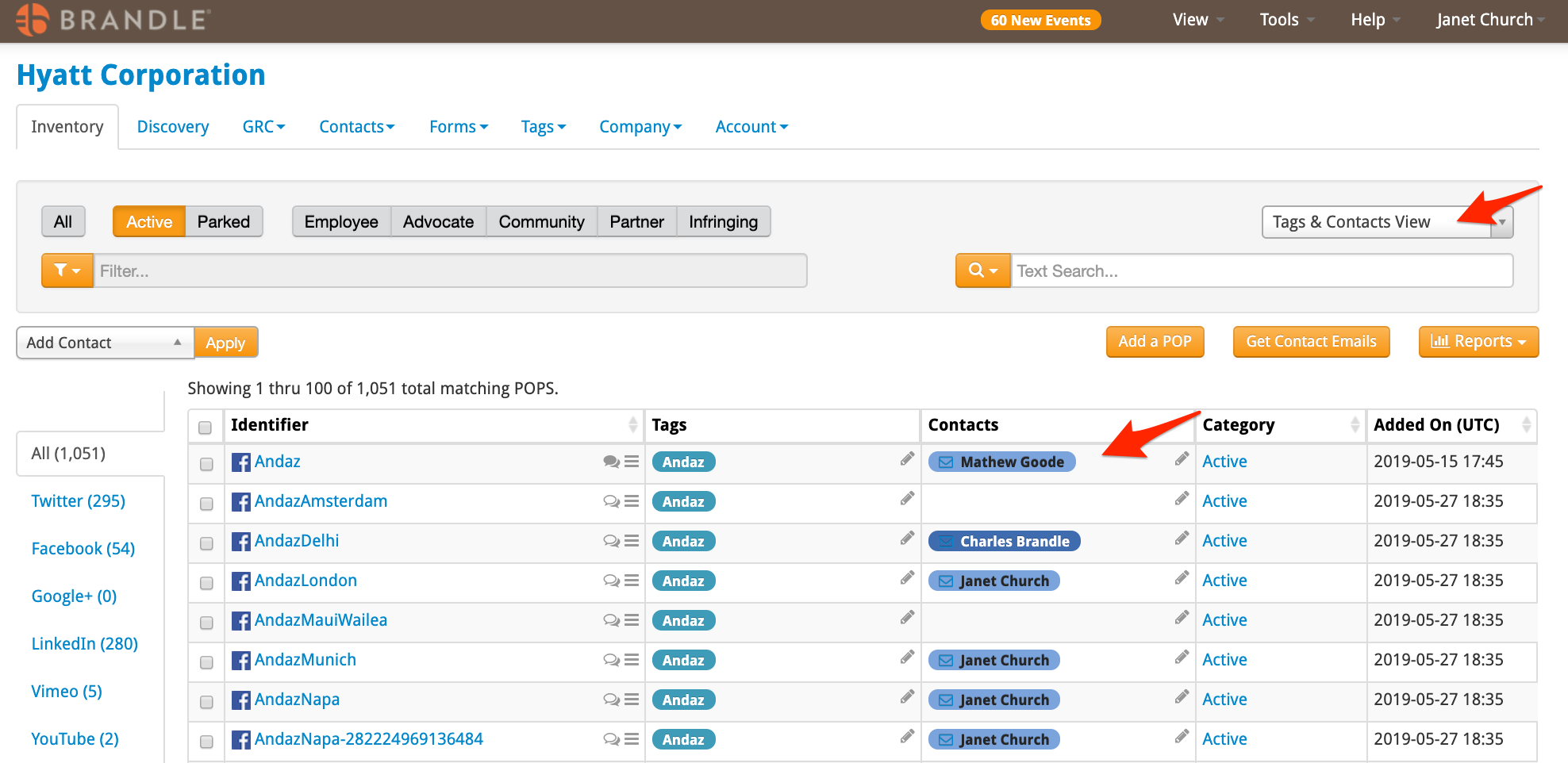
There are several ways to gather information about which Contacts are managing which POPs. however, the key is to make sure that you have a Contact assigned to each POP. You can take a quick view of your Inventory by selecting the Tags and Contacts View and see where you have the cell populated in the Contacts column. If you have a large Inventory and you are checking on a specific Business unit, first filter by the Business unit and then look for the Contacts (and missing contacts).
In the GRC Table, You can View POPs by Contact and see which POPs are not compliant. To see a list of the specific POPs, just click the number and Brandle will bring you to the specific POP list in the GRC POP Table.
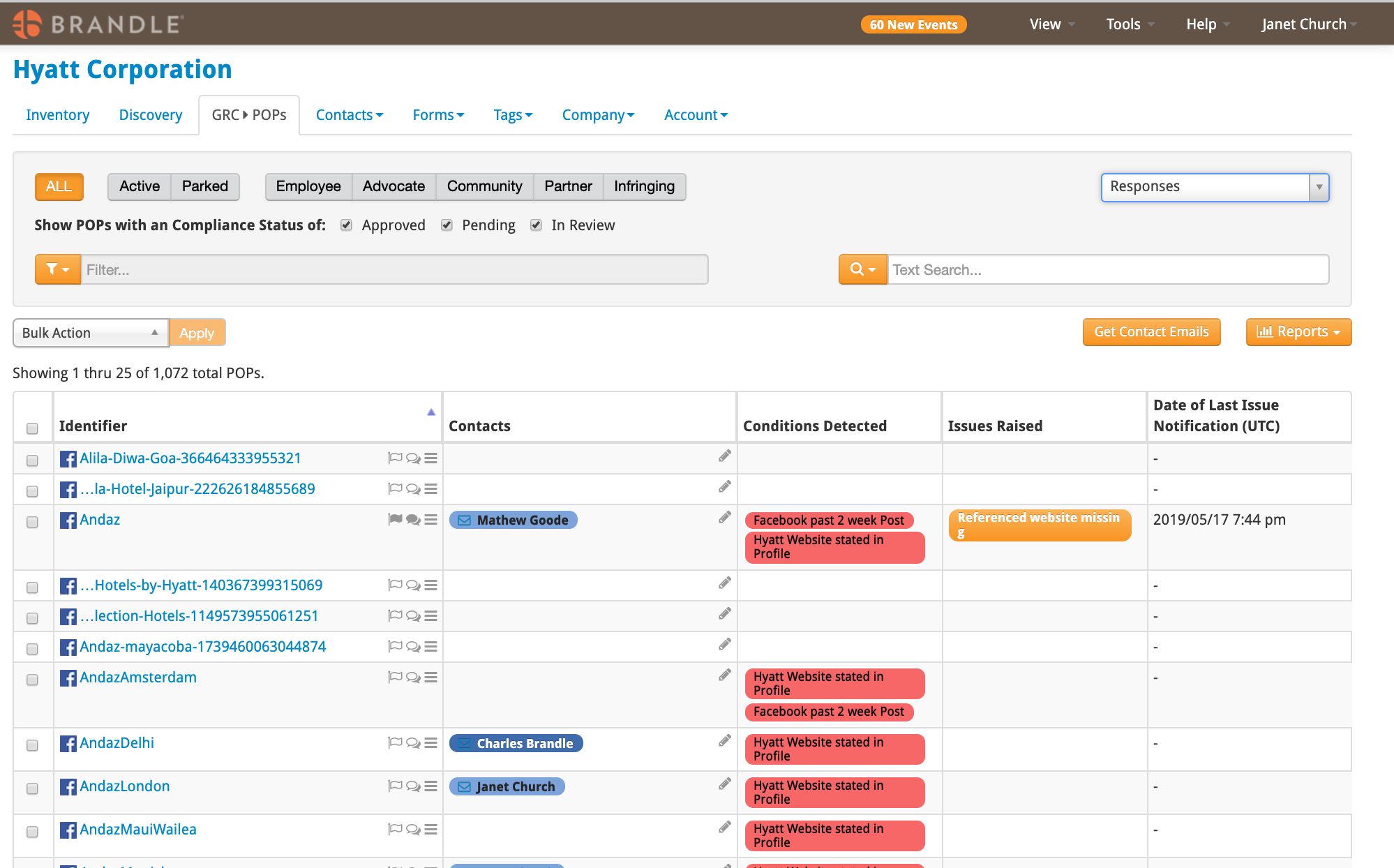
When viewing GRC by POPs you can see the contacts, and depending on the view selected, you can see what conditions the contact needs to correct on the POP.
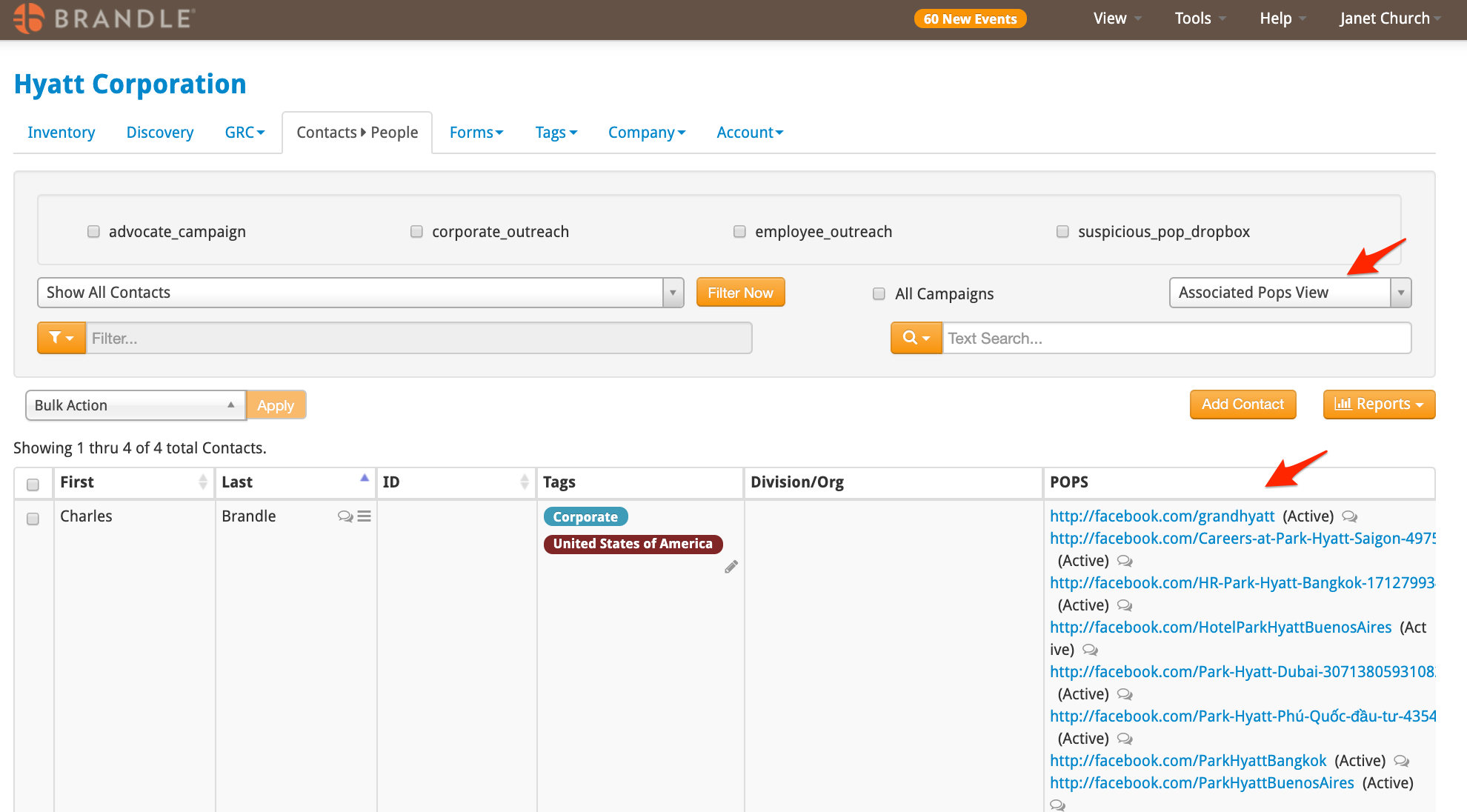
Finally, if you need to see which POPs a specific Contact manages or is associated with, you can either filter by the contact in the Inventory table, or go to Contacts/People table, select the Associated POPs view, and then search for the specific person in the Search box.
Comments
0 comments
Please sign in to leave a comment.