
Brandle wants to ensure that we help customers manage all aspects of their social media governance. Over time, it became apparent than one of the more difficult aspects of governance centered around the management of Ad ACcouns across teams and across the company. The challenges of tracking Ad Accounts was not unlike tracking POPs. they have had challenges tracking these, just as in tracking POPs. Here is what know about Ad ACcounts:
- Like POPs, a company can easily have hundreds to thousands of Ad Accounts.
- It is hard to keep track of which business group, division, region, etc. this Ad Account is meant to serve.
- There are often multiple individuals who are responsible for each Ad Account, with varying roles and which can and do change frequently.
- It is not always easy to connect an invoice from a social media platform to the correct budget, purchase order and/or credit line.
- A break in the invoice-to-PO/credit-line chain for one Ad account can result in all (or other) Ad Accounts also being disabled by the social media provider, shutting down an important channel to consumers - paid media.
- Just as with POPs, past employees, contractors, or agencies, with a lingering credential or privilege access, often to multiple Ad Accounts, is both a financial risk (e.g. unauthorized spend) as well as a risk to reputation (e.g. inappropriate ads placed under your corporate brand).
We have heard this is true, to varying degrees, of every social media network ad account program as well as Google.
New Brandle Ad Accounts Feature
There are several key areas to the Ad Accounts Manager:
1. CSV Import of Ad Accounts in Tools. This import works much like a POPs import and will import data into the Ad Accounts table. It will also inform you of (and return via email) any account that was not successfully imported so you can check for errors. Important to note, that you can import Contacts with a role, but the contact email/name MUST already be in Contacts Table to import. Once imported, click the Filter/Refresh button to have imported Ad Accounts populate the table.

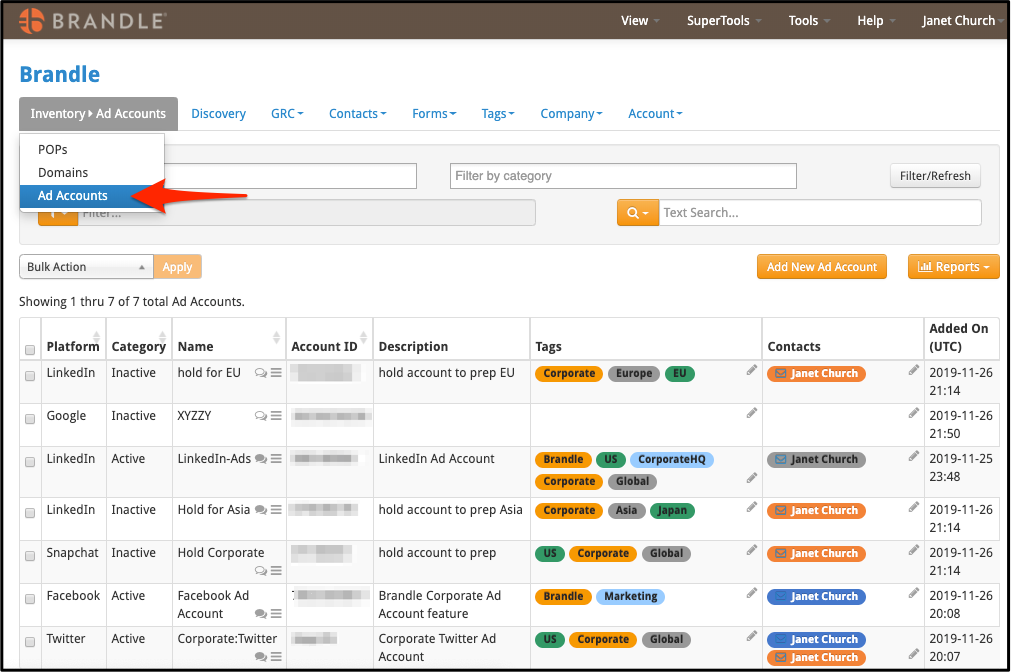
2. The Ad Accounts Table is under your Inventory tab as your third selection (once you have executed a license). Play with the Filters to see options (once you’ve added Ad Accounts). To populate the Ad Account table after a CSV import, just click the Refresh/Filter button.
3. Ad Accounts Settings are under Account tab/Ad Account Settings. You will see two current categories of Active or Inactive and you can add more or change the names of the defaults. The features work similarly to other Brandle features. You can also add Platforms and a preferred URL Format when you’d like to “Visit and Ad Account” from the Inventory table. Most Ad Accounts are listed by UID number and when submitted with just a UID without a URL path in Settings, the “visit Ad Account” option will be greyed out. If you'd like to create a standard network URL, and you'd like to understand your options better, please contact your Brandle Ambassador.
Brandle Supports Ad Accounts for these platforms:
- Snapchat
Ad Accounts Manager License
The Ad Accounts Manager is a separately licensed module for the Brandle Presence Manager. The Brandle Presence Manager is required.
Comments
0 comments
Please sign in to leave a comment.