
There are three types of general users in a Brandle corporate entity account : Administrator, View-Only User, and Entity User. The Administrator can also create Team Roles that are titled for specific use by your company.
If you are an Entity User, it means that the Administrator has given you specific Permissions so that you can help manage web and social media POPs that are related to your company and to your job. The Administrator may also have applied a specific Scope for the POPs you are allowed to manage or support.
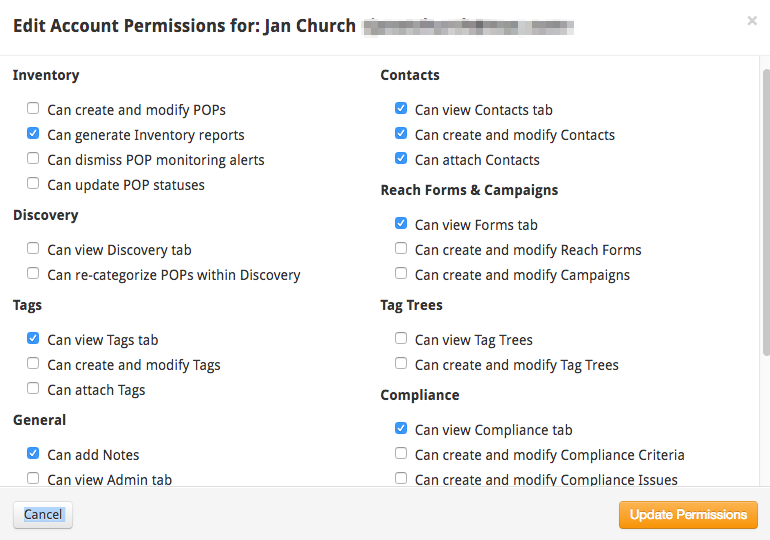
The Permissions are set to allow you certain management capabilities within the Brandle Presence Manager including Inventory, Discovery, Tags, General, Contacts, Reach Forms, Tag Trees, Compliance, Identities/Patrolling. Here is a screen shot that shows you most of the different possibilities (the other items appear when scrolling down):
In addition to setting permissions for what a specific Entity user is allowed to perform, the Administrator may also select to set a Permission Scope. This allows you to see and work on only those POPs that are in your Scope. For a global company, this scope may be set per region or country. For a multi-brand company, it may be set by a brand. In multi-brand and global companies, it may be both. At any rate, this feature helps by allowing the Entity User to see only those POPs that they need to manage, have general knowledge about, and report on. The scope is set by applying Tags.

If you are a Team User with a different title (such as Brand Manager, Agency, or Social Media Manager), then the Administrator has set certain Permissions for your role that are consistent with other individuals with the same role. there is no Scoping applied to Team User roles.
It is likely that your Administrator has created a process and workflow for how s/he would like the team to work within Brandle. To learn about your specific permissions, ask your Administrator to share what you are allowed to access within the Brandle Presence Manager.This includes how you may participate in categorizing the Discovery, Tagging the Inventory, applying Compliance Criteria to employee points-of-presence, and more. Ask your Administrator for details.
Comments
0 comments
Please sign in to leave a comment.